
How to Edit PDF Files for Free in 2025
DISCLOSURE: We earn a commission if you make a purchase through links on this page, at no additional cost to you.
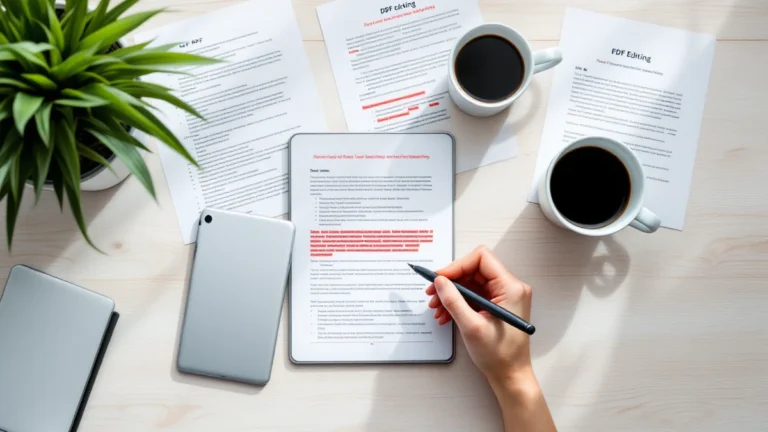
You can edit PDFs without paying for expensive software. This guide will show you the best free tools and simple steps for 2025. You'll learn how to add text, merge files, and sign documents easily.
Introduction
Have you ever needed to edit a PDF? Maybe it's a school form, a project plan, or a flyer for a club. You might think you need special software to change text or add your signature. That's not true anymore.
You can edit PDF files for free with tools you can find online. This guide will show you exactly how. You'll learn to change text, add images, and combine pages. We'll cover the best free tools and simple steps anyone can follow.
You don't need to be a tech expert. If you can use a web browser, you can do this. The whole process often takes less than five minutes for simple tasks. You just need your PDF file and an internet connection.
Related: Notion vs Obsidian: Best Knowledge App for 2025
Related: Best Note-Taking Apps for 2025: Complete Guide
We will look at three different methods. Each one has its own advantages for certain jobs. By the end, you'll know how to handle any basic PDF edit quickly and safely. Let's get started.
What You Need
Before you start editing, you need a few simple things. Getting these ready first will make the whole process much smoother.
Your PDF File
You need the PDF file you want to change. Make sure you know where it's saved on your computer or phone. It helps if you can make a copy of the original file to practice on.
A Good Internet Connection
Most free tools work right in your web browser. A stable internet connection is important so your work saves correctly. If your file is large, over 50 MB for example, a strong connection is a must.
A Free Account
Many websites will ask you to make a free account. This lets you save your projects and often gives you more features. You can usually sign up with your email in under a minute.
A Modern Web Browser
Use an updated browser like Chrome, Firefox, or Edge. Older browsers might not support the newest editing features, which can cause problems.
Step-by-Step Guide
Now, let's get to the fun part. We'll walk through how to edit a PDF for free. We'll use a mix of online tools and software. This guide will show you the basic steps that work for most programs.
Remember to start with the PDF you want to change. Also, have a backup copy saved somewhere safe. This way, your original file stays perfect.
Step 1: Pick Your Tool
First, you need to choose your free tool. Think about what you must do. Do you just add text? Or do you need to erase a whole image?
For simple jobs, try an online editor like Smallpdf or PDFescape. They work right in your web browser. For harder tasks, like editing scanned forms, software like PDF-XChange Editor is better.
Your choice decides what you can do. Make this choice before you upload your file anywhere.
Step 2: Upload Your PDF File
Next, get your PDF into the tool. If you're using a website, look for a button that says “Choose File” or “Upload.” Click it and find the PDF on your computer.
Some sites let you drag and drop the file. Just click on your PDF and drag it into the browser window. The software tools are different. You usually open them first, then click “File” and “Open” to find your PDF.
This step gets your document ready for editing.
Step 3: Edit the Text
This is a common task. Find the “Edit” or “Add Text” tool in the menu. Click on the spot in the PDF where you want to type. A text box will appear.
You can now type new words. You can also change words that are already there. Just click on them. Most tools let you pick the font style and size too. Try to match the old text so it looks natural.
For example, you can change a date from “2024” to “2025” in seconds. Always check your spelling before you move on.
Step 4: Add or Remove Images
Need a new logo or photo? Click the “Add Image” icon. It often looks like a picture. Then, select the image file from your computer. Click in the PDF to place it. You can usually make it bigger or smaller by dragging the corners.
To delete an image, just click on it. A box will appear around it. Then, press the “Delete” key on your keyboard. It's that simple. This is great for updating old flyers or reports.
Step 5: Use the Highlight and Draw Tools
Want to mark important parts? Use the highlighter tool. It works just like a real yellow marker. Click and drag over the text you want to stand out.
You can also draw shapes or arrows. Look for the “Draw” or “Shape” tool. Pick a line or a circle, then draw it on the PDF. Use different colors to organize your notes. This is very helpful for school projects.
These tools make your ideas clear without changing the original words.
Step 6: Fill Out PDF Forms
Some PDFs are forms with blank boxes. To fill them, click on the first empty box. Start typing your answer. Use the “Tab” key on your keyboard to jump to the next box quickly.
If a box is for a date or number, just type it in. Some smart forms even check your info. If a box won't let you type, the form might be “locked.” You may need a special tool to unlock it first.
Step 7: Rearrange or Delete Pages
Sometimes you need to change the page order. Look for a “Pages” menu or a thumbnail view on the side. You will see small pictures of each page.
Click on a page and drag it to a new spot. To delete a page, right-click on its thumbnail. Then, choose “Delete” from the menu. You can also add a blank page if your report needs to be longer.
Step 8: Save and Download Your Edited PDF
You're almost done! Now, save your work. Click the “Save” or “Download” button. Your computer will ask where to put the new file. Give it a clear name, like “Science_Report_Edited.pdf.”
A very important tip: Always save the edited file as a new PDF. Do not save over your original file. This keeps your first copy safe in case you make a mistake.
Step 9: Check the Final Quality
Before you send or print it, check your work. Open your new downloaded PDF. Look at every page. Is all the text straight? Are the images clear?
Zoom in to check the details. Make sure you didn't leave any old marks or text behind. A good check now saves you from problems later. It makes you look professional.
Step 10: Share Your File
Your PDF is ready to share. You can attach it to an email. Or, you can upload it to a cloud service like Google Drive. Some editing tools even give you a shareable link right away.
If you need to print, click “File” then “Print.” Check the print preview to be sure everything fits on the page. Now, you have a finished, edited PDF made all by yourself.
Troubleshooting
Sometimes things don't work as planned. Don't worry! Here are fixes for common problems you might face.
The File Won't Open
First, check the file name. Make sure it ends in “.pdf”. If it says “.pdf.dmg” or something else, that's wrong.
Your file might also be damaged. Try opening it on a different device or with another free tool. Often, a different program can read it just fine.
Your Edits Aren't Saving
This is a very common issue. Always check if you downloaded the edited file. Many online editors make you click “Export” or “Download” to get your new version.
If you're using a web tool, your edits might be stuck in your browser's memory. Try a different web browser, like Chrome or Firefox. Clear your browser's cache if the problem keeps happening.
Poor Text or Image Quality
Your PDF might be a scanned picture of a page. You can't edit the text directly in that case. You need to use an “OCR” feature, which turns pictures of words into real text.
Look for a button that says “OCR” or “Scan to Text”. Some free tools limit this to 10 pages per month. For bigger jobs, you may need to split your file or use a different service.
Watermarks on Your PDF
Free tools often add a small logo or watermark. This is normal. To remove it, you usually need to upgrade to a paid plan.
Before you pay, check the watermark's placement. Sometimes it's in the footer and isn't a big deal for personal use. If you need it gone, try another free editor's trial period.
Security or Password Errors
You can't edit a PDF that is locked by its owner. You will see a lock icon or get a password prompt. You need the exact password to make changes.
If you set the password yourself and forgot it, some tools can help. Look for an option that says “Remove Password” if you are the original owner. For other people's files, you must ask them for access.
Conclusion
You now have a full guide to free PDF editing. The tools we covered, like Smallpdf and PDFescape, can do a lot. You can try them without any cost.
Your next step is simple. Pick one tool from our guide and test it with a file. See how it works for your own needs. Check if the free features are enough for you.
For more help, look at our other articles. We have guides on making PDFs and fixing common file problems. These can help you get better at handling all your documents.
Remember, you don't need to pay for professional software yet. Start with these free options first. You might find they have all the important features you need.
Content Notice: This article was created with AI assistance and reviewed by our editorial team for accuracy, quality, and compliance. We use AI to help research and structure content, but all recommendations are based on thorough evaluation.
Ready to try SwifDoo PDF?
Edit, convert, and sign PDFs easily. Affordable alternative to Adobe.